
The Verification tab shows the outcome of checking a sanitized PDF against the settings used to create it. The overall result provides a quick indication of whether the applicable checks succeeded, while individual rows explain what was examined.
PDFSanitize uses three main verification outcomes: Passed, Passed With Warnings, and Failed. Understanding the differences helps you decide whether the document can proceed to final review or requires another sanitization operation.
Passed
Passed means that every verification check performed on the sanitized output satisfied its expected condition. These checks can include structural integrity, matching page counts, and confirmation that selected metadata or document features are absent.
For example, a PDF sanitized with Metadata Only can pass when its document information metadata, XMP metadata, identifiers, and previous revisions have been removed successfully. Other features may remain because their removal was not selected.
A Passed result therefore applies to the actual sanitization settings rather than to every possible feature a PDF might contain. Before distributing the document, confirm that the chosen settings were appropriate and that its visible content is ready to share.
Passed With Warnings
Passed With Warnings indicates that no verification check failed, but at least one check generated a warning.
Warnings can identify conditions that deserve attention without necessarily making the entire verification unsuccessful. You should inspect the affected check and any sanitization notices before deciding whether the output is suitable for its intended use.
For organizations with defined document-review procedures, warnings may require review or approval before distribution. For personal use, the same information helps you decide whether to examine the document more closely or try another profile.
Failed
Failed means that at least one verification check did not satisfy its required condition. A failure may concern PDF structural integrity, an unexpected page-count difference, or a selected document feature that remains in the output.
Do not treat a Failed document as having satisfied the chosen sanitization settings. Review the affected check, inspect the activity log if necessary, and determine whether the issue can be corrected.
If the problem concerns the PDF itself, you may need to prepare a valid source copy or use another supported document workflow. If it concerns output creation or residual content, check the selected options before repeating sanitization.
Reading individual checks
The Verification tab presents individual checks with information about the condition examined and its result. Depending on the check, the Before and After columns may contain values such as Present and Absent or numerical counts.
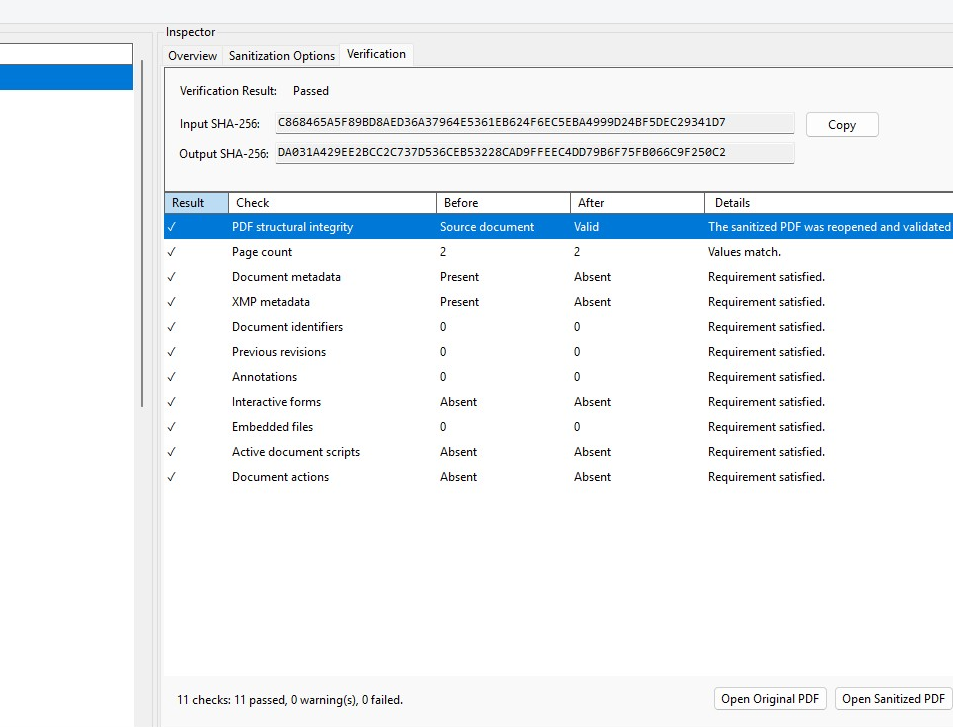
For example, a metadata check may indicate whether a particular metadata structure existed before sanitization and whether it remains afterward. A page-count check compares the original and sanitized document counts, while hyperlink checks can account for both link annotations and supported external navigation actions.
The Details information provides additional context when available. This is often more useful for understanding a problem than relying on the overall Passed or Failed label alone.
Fingerprints and document comparison
The Verification tab also displays SHA-256 fingerprints associated with the original and sanitized files. These values identify the exact file contents and help distinguish different outputs produced from the same source.
You can copy a verification summary containing the overall result and fingerprints for use in a record or support request. The tab also provides Open Original PDF and Open Sanitized PDF controls, allowing you to open the corresponding files in your default Windows PDF application.
Comparing the documents visually is especially useful when the sanitization involved page reconstruction, removal of interactive forms, or other changes that may affect how the PDF behaves.
Deciding what to do next
If verification Passed, review the final document and confirm that the selected profile met your needs. If the result contains warnings, investigate them before sharing the file, particularly when handling confidential or business-critical documents.
If verification Failed, resolve the reported problem and create a new sanitized output when necessary. Do not rely on a report or output filename as a substitute for examining the actual verification result.
The final decision to distribute a document should consider both its technical verification and the information visible to its recipients.