
Maximum Assurance is the most extensive predefined sanitization profile in PDFSanitize. It is available in Pro and Enterprise and is intended for documents where retaining the visible page appearance is important, but preserving the original PDF’s underlying text, graphics, and interactive structures is not.
Unlike the other predefined profiles, Maximum Assurance reconstructs every page from its rendered appearance. The resulting PDF remains readable in a normal viewer, but its pages no longer use the original selectable source text and vector content.
What Maximum Assurance changes
A normal PDF can contain text objects, vector drawings, images, forms, links, annotations, and other page-level elements. These structures may support text selection, search, editing, accessibility, and interactive behavior.
Maximum Assurance produces new pages based on their rendered appearance instead of retaining those original page objects. The visible text and graphics remain part of the page image, but they are no longer available as the original selectable text or vector objects.
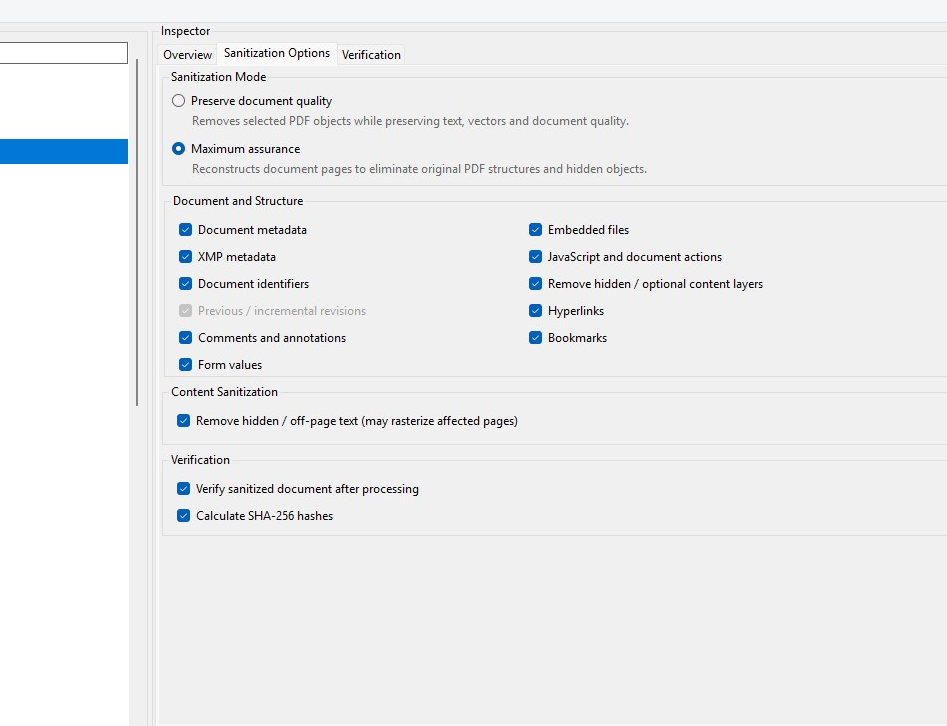
The predefined profile also removes document metadata, XMP metadata, identifiers, previous revisions, comments, forms, embedded files, JavaScript, document actions, hyperlinks, bookmarks, optional-content structures, and the original hidden or off-page text objects.
This approach provides a more extensive separation from the source PDF’s structures than ordinary structural sanitization.
Effects on text and navigation
Because the pages are reconstructed as images, text that was selectable in the original document is no longer retained in that form. Searching or copying text may therefore stop working in the sanitized PDF unless a separate process later adds searchable text.
Interactive forms, original hyperlink objects, bookmarks, and other document navigation structures are not retained by the predefined Maximum Assurance profile. Digital signatures are also invalidated because the sanitized output is a new, modified document.
For example, a recipient may still be able to read a report normally, but they will not be able to select a paragraph as original PDF text or interact with the form fields from the source file.
These changes matter when documents are intended for research, accessibility, data extraction, or further editing.
Page appearance and image quality
PDFSanitize uses high-resolution rendering at 300 DPI for page reconstruction. The original page dimensions are preserved, allowing the resulting document to retain its general layout and printed appearance.
Image-based content behaves differently from vector graphics at high zoom levels. Very small text, fine drawings, unusual fonts, transparency, and details near the page boundaries deserve particular attention during visual review.
The sanitized PDF may also be larger than the original, especially when a compact text-based document has been converted into a collection of high-resolution page images.
Long documents and image-heavy PDFs can require additional processing time, memory, and temporary disk space. If you plan to use Maximum Assurance regularly, test its performance with documents representative of your normal workload.
Accessibility considerations
Text objects and tagged PDF structures can support screen readers, reading order, text extraction, and other accessibility functions. Maximum Assurance does not preserve those original structures.
If the final document must remain accessible, consider how accessibility will be provided after sanitization. You may need a separate document preparation or accessibility workflow rather than relying on the reconstructed PDF alone.
Applying Maximum Assurance
- Add and analyze the required documents.
- Review their findings and confirm that preserving original selectable text is not necessary.
- Select Maximum Assurance from the sanitization profiles.
- Check Sanitization Options to confirm that Maximum Assurance mode is active.
- Click Sanitize and read the reconstruction warning.
- Confirm the operation if its effects are acceptable.
- Review verification and compare the sanitized PDF visually with the original.
PDFSanitize creates a separate output rather than overwriting the source. The original remains available for comparison, although it may still contain information that the sanitized copy was intended to remove.
Visible information remains visible
Maximum Assurance reconstructs what the page displays. It does not determine whether that content is confidential or should be disclosed.
If a document visibly contains names, account numbers, confidential paragraphs, or sensitive images, those elements may remain readable after reconstruction. They must be properly redacted or removed beforehand if they are not intended for the recipient.
Verification checks the applicable technical requirements, but visual inspection remains important. Before sharing a Maximum Assurance output, confirm that every page is complete, legible, correctly oriented, and free from visible information that should not be distributed.