
PDFSanitize Pro and Enterprise allow you to configure sanitization settings individually instead of relying entirely on a predefined profile. This gives you more control over which document features are removed and how the pages are processed.
Standard users can inspect the settings associated with Metadata Only and External Sharing, but advanced removal controls and processing-mode changes are unavailable. All editions can change the automatic verification and SHA-256 fingerprint options.
Opening Sanitization Options
Select Sanitization Options from the sanitization controls to open the corresponding Inspector tab. The available settings include the processing mode, document metadata controls, interactive-content removal options, hidden-content settings, and verification preferences.
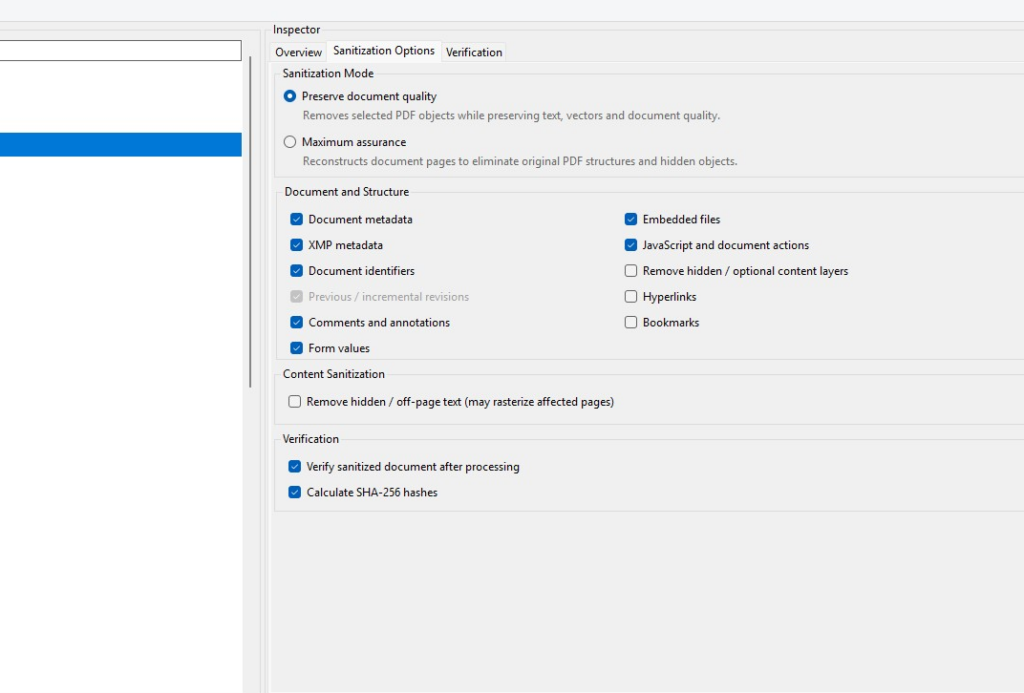
When you select a predefined profile, its corresponding options are displayed automatically. In Pro and Enterprise, you can adjust individual checkboxes and choose a different mode to create a custom configuration.
The settings displayed in the interface are important because they determine the behavior of the next sanitization operation. Before processing sensitive documents, review the individual options rather than relying only on the profile previously selected.
Metadata and document history
Document metadata controls removal of the PDF document information properties, including author, title, creator, producer, and related information when present. XMP metadata controls removal of the document’s XML-based descriptive metadata.
Document identifiers controls removal of PDF identifiers, while Previous / incremental revisions removes earlier revisions that may remain in a file after incremental saves.
Previous revision removal is always enabled and cannot be turned off. This applies to all editions and profiles, including custom configurations.
Annotations, forms, and attachments
Comments and annotations removes ordinary PDF annotations, subject to the separate selections for hyperlink and form annotations. This is useful when comments, notes, or other review elements should not accompany the final document.
Form values controls removal of interactive form structures and their associated fields or widget annotations. The resulting PDF should not be expected to retain the original editable form functionality when this option is selected.
Embedded files controls removal of supported embedded-file and associated-file structures. It is relevant when a PDF contains attachments that are not part of the visible document but may still be accessible to the recipient.
For example, a customer report might contain an attached spreadsheet used during preparation. If that attachment is unnecessary for the recipient, the embedded-file removal setting should be enabled.
Scripts, hyperlinks, and bookmarks
JavaScript and document actions removes supported scripts and active document actions. These features can provide automated or interactive behavior in compatible PDF readers.
Hyperlinks removes PDF link annotations and supported external navigation actions. The visible text of a website address remains on the page, and a PDF viewer may still recognize it automatically.
Bookmarks removes the document’s outline navigation. This can be useful when distributing a PDF without the original navigation entries or when an outline contains information that should not accompany the document.
Optional-content layers and hidden text
Remove hidden / optional content layers targets optional-content structures that may allow different page elements to be displayed or hidden.
In Preserve Quality mode, PDFSanitize may prevent sanitization if the document contains optional content and removing it cannot be completed safely while preserving the original page representation. Maximum Assurance is the appropriate mode when those original structures need to be eliminated.
Remove hidden / off-page text targets text detected with invisible rendering modes or positioned completely outside the visible page boundary. In Preserve Quality mode, affected pages can be reconstructed from their rendered appearance to remove the targeted original text objects.
Maximum Assurance reconstructs every page regardless of the hidden-text findings.
Verification and SHA-256 settings
Verify sanitized document after processing controls whether verification runs automatically once a sanitized output has been created. This option is enabled by default and can be disabled when your workflow requires verification to be performed separately.
Calculate SHA-256 hashes controls whether fingerprints are calculated for the original and sanitized files during sanitization. Fingerprints can be used to identify the exact files associated with reports and verification results.
If you later run manual verification, PDFSanitize calculates the fingerprints needed for that verification record even when fingerprint calculation was disabled during the original sanitization.
Saving and resetting settings
PDFSanitize retains your sanitization preferences between application sessions, subject to the restrictions of the active edition. Pro and Enterprise can restore advanced settings, while Standard only restores supported predefined profiles and the available verification and fingerprint preferences.
Use Reset Defaults when you want to return to the default External Sharing configuration. This is useful if you have modified several options and want to begin again from a known profile.
A custom configuration is not necessarily more extensive than a predefined profile. If you disable a removal option, the corresponding information may remain in the sanitized PDF, so review the complete selection before processing documents that contain personal or business information.