
If PDFSanitize does not behave as expected and the troubleshooting procedures have not resolved the problem, you can contact Probativa support for assistance.
Providing accurate information about the issue can make it easier to determine whether the cause involves the source PDF, the selected sanitization settings, Windows permissions, licensing, or the environment in which the application is running.
You usually do not need to provide confidential PDF contents to begin investigating a problem. Application information, error messages, and the steps required to reproduce the issue are often a useful starting point.
Record the application and environment information
Start by identifying the PDFSanitize version and active edition. You can obtain application information through the Help area and confirm whether Standard, Pro, or Enterprise is active.
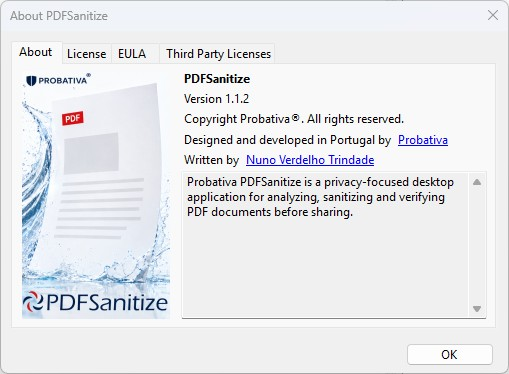
Also record the Windows version and whether PDFSanitize is running on a physical computer, Windows Server, or a virtual machine. This is particularly relevant when the issue involves licensing or access to features that are restricted by edition.
If the problem appeared after an application update, Windows update, computer replacement, or license transfer, mention that change. The timing can help distinguish a new problem from a restriction that was already present.
Describe the operation that failed
Explain what you were attempting to do when the problem occurred. For example, the issue may involve adding a folder, analyzing a PDF, starting sanitization, verifying an output, exporting a report, generating a certificate, or activating a license.
Describe the steps in the order you performed them and identify the point at which the result differed from what you expected.
If the issue is related to sanitization, record the selected profile, processing mode, and any relevant custom options. It is also useful to mention whether the document is encrypted, digitally signed, or contains unusual page content.
For output problems, note whether the document was stored locally or on a network share and whether PDFSanitize could create any sanitized output.
Collect error messages and activity-log information
When PDFSanitize displays an error or warning, record its exact text rather than paraphrasing it. The specific message can identify whether the problem concerns a missing file, permissions, unsupported document structure, or licensing condition.
The activity log can provide additional context, including the operations performed and the time at which they occurred. Copy the relevant messages when possible, taking care to exclude unrelated confidential information.
For verification problems, identify the overall result and the names of the failed or warning checks. If the issue involves an unexpected output, record the sanitized filename and any available SHA-256 fingerprint.
These details can help support distinguish a processing failure from a problem involving the wrong source file or an earlier sanitized version.
Check whether the issue is reproducible
Before contacting support, try to determine whether the problem occurs consistently. If it affects one particular PDF, test another non-sensitive document using the same profile to see whether the behavior is document-specific.
If a document fails on a network share, try an authorized local working copy. This may reveal whether file access or network availability is involved.
For sanitization differences, note whether the problem occurs with Preserve Quality, Maximum Assurance, or only when hidden-text removal is enabled.
If the issue concerns report export, try another supported format or destination. For licensing, record whether the computer can access the internet and whether the problem began after a change to the device or network.
Contacting Probativa support
You can access Probativa’s support resources at https://probativa.com/support/ and use the available support contact method.
In your request, describe the issue, identify the PDFSanitize version and edition, and provide the relevant Windows environment information. Include the exact steps that reproduce the problem, what you expected to happen, what happened instead, and the troubleshooting already attempted.
Where appropriate, include non-sensitive error messages, activity-log excerpts, and verification details. A clear description of a reproducible problem is usually more useful than a large collection of unrelated screenshots or files.
Protect confidential information in support requests
Do not include passwords, complete product keys, confidential document contents, or unrelated personal information in an ordinary support request.
If a document contains sensitive information, do not attach the original PDF merely because it caused an error. First determine whether the issue can be reproduced with a non-sensitive test file or described through its technical properties and error messages.
When the original document is necessary for further investigation, use only a transfer method and disclosure procedure that you have explicitly approved.
Support requests may also contain full file paths, usernames, document names, or environment information copied from reports and logs. Review this information before sending it, particularly when the application is used within an organization.
Keeping accurate, relevant diagnostic information while limiting unnecessary disclosure helps make the support process effective without introducing additional risks to the documents you are trying to protect.