
PDFSanitize is a Windows application that helps you inspect PDF documents, remove selected information that may not be visible when reading them, and verify the resulting files before they are shared or stored.
A PDF is more than a collection of visible pages. It can contain author information, document identifiers, earlier revisions, comments, attached files, interactive forms, hyperlinks, scripts, and other structures that are not immediately apparent in a PDF viewer. These features are often useful during document creation and review, but you may not want them included in the final copy.
PDFSanitize allows you to examine these characteristics and decide how they should be handled. You can use it to prepare a personal document for sharing, clean up a report before sending it to a customer, or apply the same sanitization settings to multiple documents in a business workflow.
How you work with documents
The application uses a PDF list where you can add individual files or import entire folders. You can keep several documents in the list and choose which ones to process by selecting their checkboxes.
Each PDF is handled separately during analysis, sanitization, and verification, even when you process several files in one batch. This allows you to examine the findings and final results for individual documents without having to run every operation separately.
Adding a PDF does not modify it. You can inspect its properties, decide which profile to use, and change the document selection before starting sanitization.
Analysis, sanitization, and verification
Analysis examines the original PDF to identify metadata, document properties, previous revisions, annotations, interactive features, attachments, and selected forms of hidden content. The results appear in the Overview tab and help you understand what the document contains before changing it.
Sanitization applies the selected removal settings and creates a separate PDF. The settings determine whether PDFSanitize performs a limited metadata cleanup, removes additional document features, or reconstructs page content from its visible appearance.
Verification checks the sanitized output against the settings used to create it. Depending on those settings, PDFSanitize examines PDF structural integrity, page count, metadata, identifiers, previous revisions, annotations, forms, attachments, scripts, links, and other applicable features.
These operations are connected but serve different purposes. Analysis tells you what was detected in the original document, sanitization creates the modified file, and verification checks whether the resulting PDF satisfies the selected requirements.
A typical workflow
Most document preparation tasks follow the same sequence, whether you are working with one PDF or a larger collection.
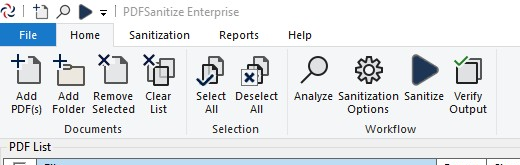
- Add the documents. Use Add PDF(s) or Add Folder and confirm that the intended files are checked in the PDF list.
- Analyze the files. Click Analyze and review the information in the Overview tab, particularly any findings relevant to the document’s intended recipients.
- Choose the sanitization settings. Select a predefined profile or configure the available options in Sanitization Options.
- Create the sanitized PDFs. Click Sanitize, review any confirmation messages, and allow processing to finish.
- Check the results. Examine the Verification tab and open the sanitized PDF to confirm that it still looks and behaves as expected.
If you start sanitization without analyzing every selected document, PDFSanitize offers to perform the missing analysis first. Sanitization can then continue if that analysis succeeds.
Preserve Quality and Maximum Assurance
PDFSanitize supports two sanitization modes with different effects on page content.
Preserve Quality removes selected PDF information while retaining ordinary text and vector graphics wherever possible. This is generally useful for documents that recipients need to search, copy text from, or print without converting every page into an image.
When removal of detected hidden or off-page text requires changing the page content, PDFSanitize can reconstruct the affected pages from their rendered appearance. Unaffected pages can retain their original selectable text and vector characteristics.
Maximum Assurance reconstructs every page, so the resulting document preserves the visible page presentation without retaining the original page-level text, vector objects, forms, and other underlying content structures.
This can provide a more extensive separation from the original PDF, but the resulting pages no longer contain the original selectable text. Searchability, text extraction, accessibility, file size, and image quality at high zoom levels may therefore be affected.
Maximum Assurance is available in Pro and Enterprise. Standard uses Preserve Quality with its supported predefined profiles.
Original and sanitized files
PDFSanitize retains the source document and creates a separate output file in the same folder. For example, sanitizing ProjectReport.pdf normally creates ProjectReport.sanitized.pdf.
If that output name is already in use, PDFSanitize generates another available filename, such as ProjectReport.sanitized_2.pdf. Existing outputs are not silently replaced by a new sanitization operation.
Keeping the original available allows you to compare the two documents, but the original may still contain the information you intended to remove. When sharing a document, confirm that you are selecting the sanitized copy.
Reports and processing records
PDFSanitize can calculate SHA-256 fingerprints for the original and sanitized PDFs. These identify the exact file contents associated with an operation and can be included in reports alongside the selected profile, processing information, and verification results.
All editions support TXT reports. Pro and Enterprise additionally support PDF, CSV, and JSON reports, while Enterprise can create a Certificate of Sanitization covering selected documents that have been sanitized and verified.
PDF processing takes place locally on your Windows computer. Licensing and application-integrity functions may require communication with Probativa services, but analysis, sanitization, page reconstruction, and verification do not require uploading the document contents.
Before distributing any sanitized PDF, review the visible pages as well as the technical results. PDFSanitize removes selected document information and structures, but visible confidential content must still be removed or properly redacted when it is not intended for the recipient.